
Hug in Heaven is an AI memorial-video theme that imagines sharing one more embrace with a loved one who has died. It often pairs family photographs with soft clouds, golden light, or a peaceful garden. The result is a newly generated scene: a visual expression of remembrance, not recovered footage or evidence of an actual reunion.
To create one, start with recognizable photographs, prepare a frame containing both people, and animate a single gentle embrace. The important decision comes before the motion prompt: does your chosen tool accept separate identity references, or does it need one complete starting image? This guide explains that difference and provides prompts, photo checks, and fixes for common problems.
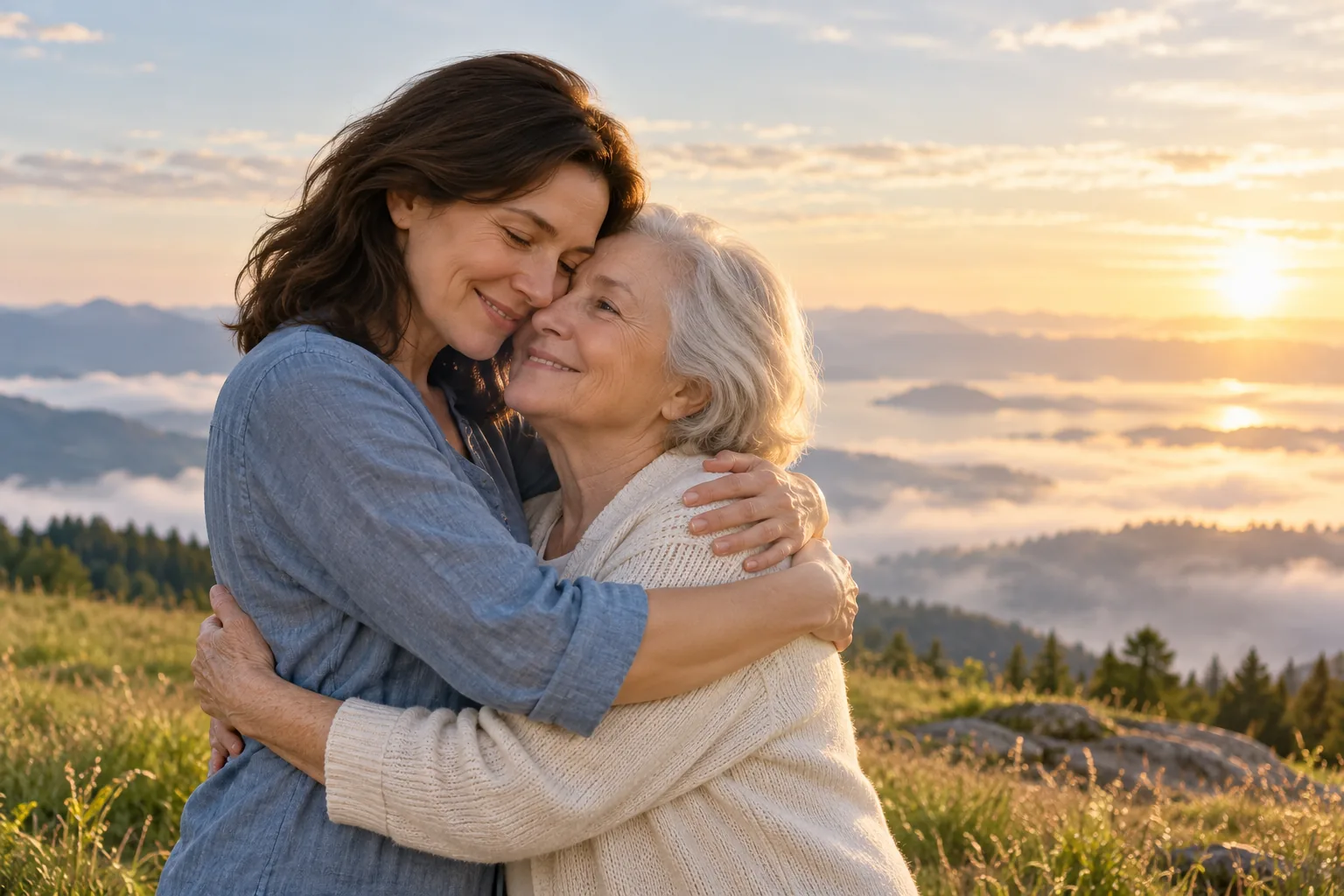
The six images in this guide are AI-generated illustrations with fictional people. They show visual directions, not footage of real families or tested video outputs.
What does Hug in Heaven mean in AI video?
Outside AI tools, "hug in heaven" can also refer to remembrance quotes, memorial gifts, and keepsakes. This guide focuses on the AI image and video meaning: combining a wish to hug someone again with generated motion from photographs. A typical video shows two people approaching, recognizing each other, and embracing. Some treatments include a stairway or a path through clouds. Others stay close to an everyday memory, such as a familiar room or a walk in a garden.
People also use the term for AI hug filters, memorial templates, and reunion photo animations. Those labels do not describe one standardized feature. One service might offer a preset; another might require image editing, reference images, and a written motion prompt.
On AI Image to Video, the practical route is to create or refine a starting frame with the GPT Image 2 image tool, then use the AI video generator to animate it. This guide does not assume a dedicated Hug in Heaven button. Check the selected model and the options actually shown in the generator.
A tribute can feel personal without looking supernatural. Choose the setting the family would recognize and welcome. Clouds can communicate an imagined heaven; a kitchen, porch, or garden can communicate a remembered relationship just as clearly.
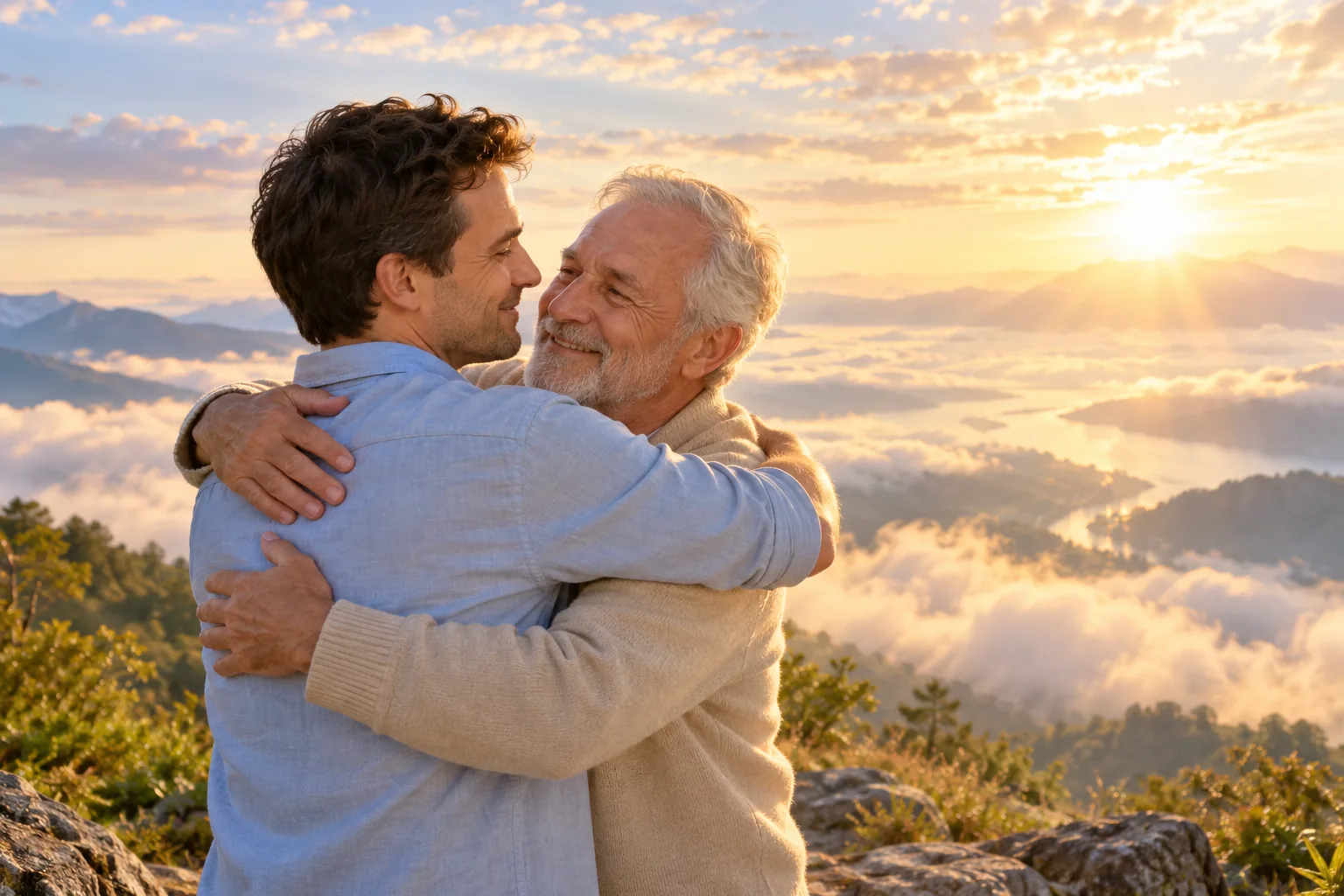
Clouds and soft light are optional visual symbols. The relationship should remain the focus.
Choose the right workflow for your photographs
The most avoidable mistake is treating every image upload box as an identity reference. Read its label before adding files.
| What you have | What to prepare | What to do in the video tool |
|---|---|---|
| One photograph showing both people clearly | A clean crop with space around shoulders and arms | Upload it as the Starting Image and request one modest movement |
| Two separate portraits | One combined scene showing both people at a believable scale | Upload the combined image as the Starting Image |
| A tool mode explicitly supporting multiple identity references | Separate clear references plus a scene description | Follow that mode's reference instructions; do not assume all video models support it |
| A completed opening frame and a completed closing frame | Two images of the same people, clothing, setting, and composition | Use Start + End only when the selected model supports it |
| A damaged or very small photograph | A carefully repaired version checked against the original | Resolve facial changes before spending credits on motion |
Starting Image and Ending Image are positions in time. Uploading one portrait of yourself as the beginning and one portrait of your relative as the end may encourage a transition between people instead of a two-person hug. For the simplest workflow, put both people in the same starting frame.
If you already have a good photograph together, avoid rebuilding it unnecessarily. A subtle shoulder movement or a held embrace may preserve more of the original memory than a fully invented reunion.
Pick photos that give faces and hands a chance
Use the clearest available photograph of each person. Faces should be visible rather than hidden by sunglasses, deep shadow, or a distant crop. Similar head angles and lighting make it easier to build a coherent scene, although the photographs do not need to come from the same day.
Before generating, check five details:
- Recognition: Can you identify each person from the source without enlarging it excessively? Enlarging a tiny face cannot restore missing identity details.
- Age and expression: Choose how you want the person remembered. Avoid asking the model to change age and perform a complex movement in the same attempt.
- Body space: Leave room for shoulders, elbows, and hands. A face-only crop gives the model more anatomy to invent.
- Lighting: Prefer two references with compatible light direction. A strongly lit face beside a heavily shadowed face can look pasted together.
- Permission and audience: Use photographs you are entitled to use and consider whether the people shown, or close family members, would welcome the result.
Keep untouched originals. If you repair an old photograph, compare the eyes, smile, hairline, and facial shape with the source before continuing. A sharper face that looks like a different person is not an improvement for a memorial.
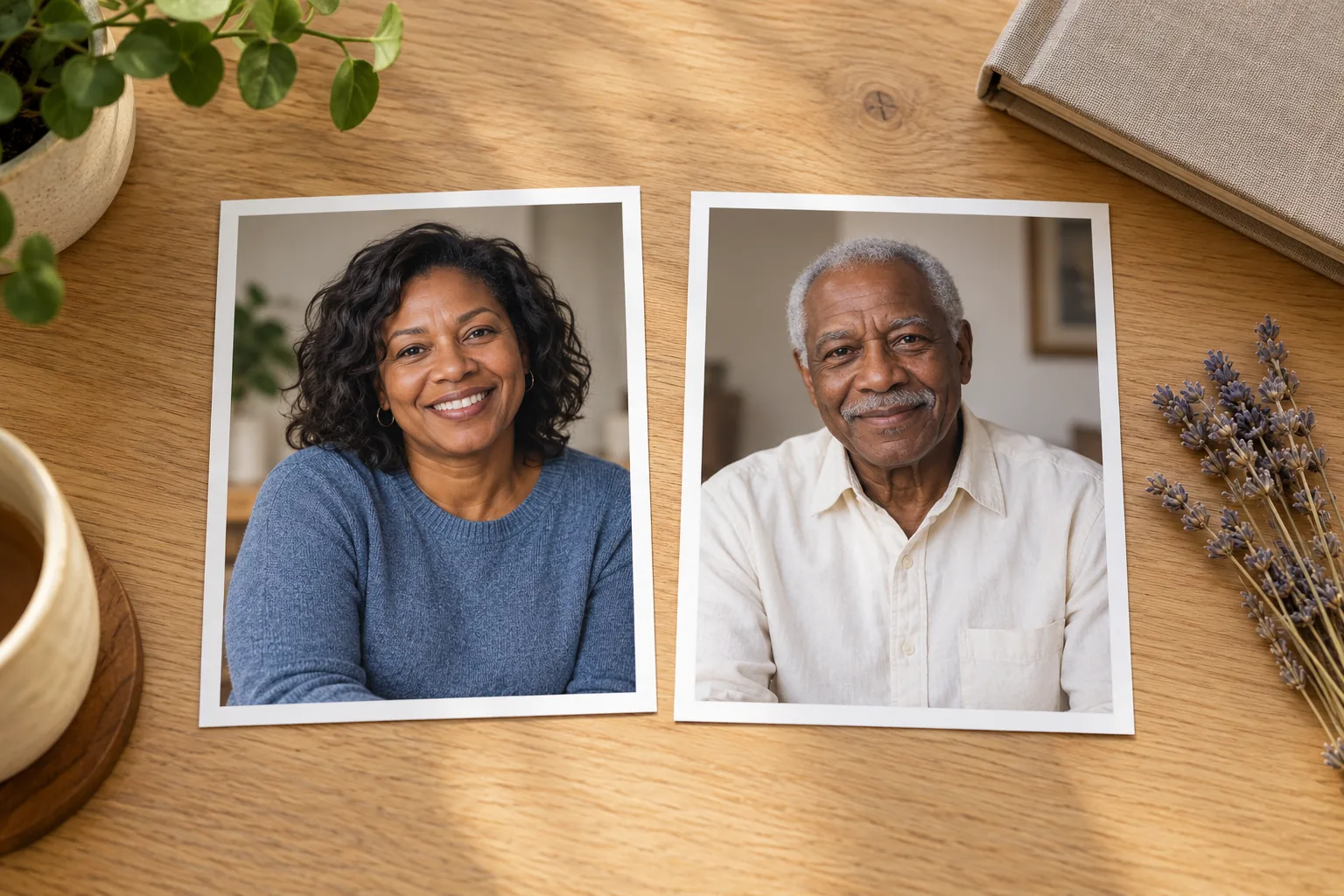
Separate references establish who appears in the scene. The combined starting frame establishes where they stand and how they relate.
How to make a Hug in Heaven video, step by step
1. Decide on one moment and one setting
Write a short brief: who is present, where they are, and what happens. For example: “An adult daughter and her father stand close together in a quiet garden and share a slow hug.” Keep the first attempt to that moment.
Avoid combining a long walk, sudden appearance, costume change, embrace, dialogue, and departure. Each added event creates another opportunity for identity or motion to drift. If the hug is the emotional center, begin close enough that the movement can happen naturally.
2. Prepare a complete starting frame
If your people are in separate photographs, open the reference-image creation workflow and use the image-to-image option when available. Upload the references within the limit shown by the tool. Describe each person unambiguously and ask for one scene containing both of them.
Create a single photorealistic memorial tribute image using the uploaded references. Include both people as distinct individuals: the adult daughter from the first reference on the left, and her father from the second reference on the right. Preserve their recognizable facial features and apparent ages. They stand close together, turned slightly toward each other, ready for a gentle embrace. Show both upper bodies and natural arms with room around the elbows. Use a quiet garden, soft late-afternoon light, consistent perspective, and realistic proportions. No extra people, text, halos, or exaggerated effects.Adapt the relationship and positions to your own photographs. Review the still image before animating: both faces must be recognizable, the heights believable, and the hands plausible. If the pose is already confused, a motion prompt will not reliably repair it.
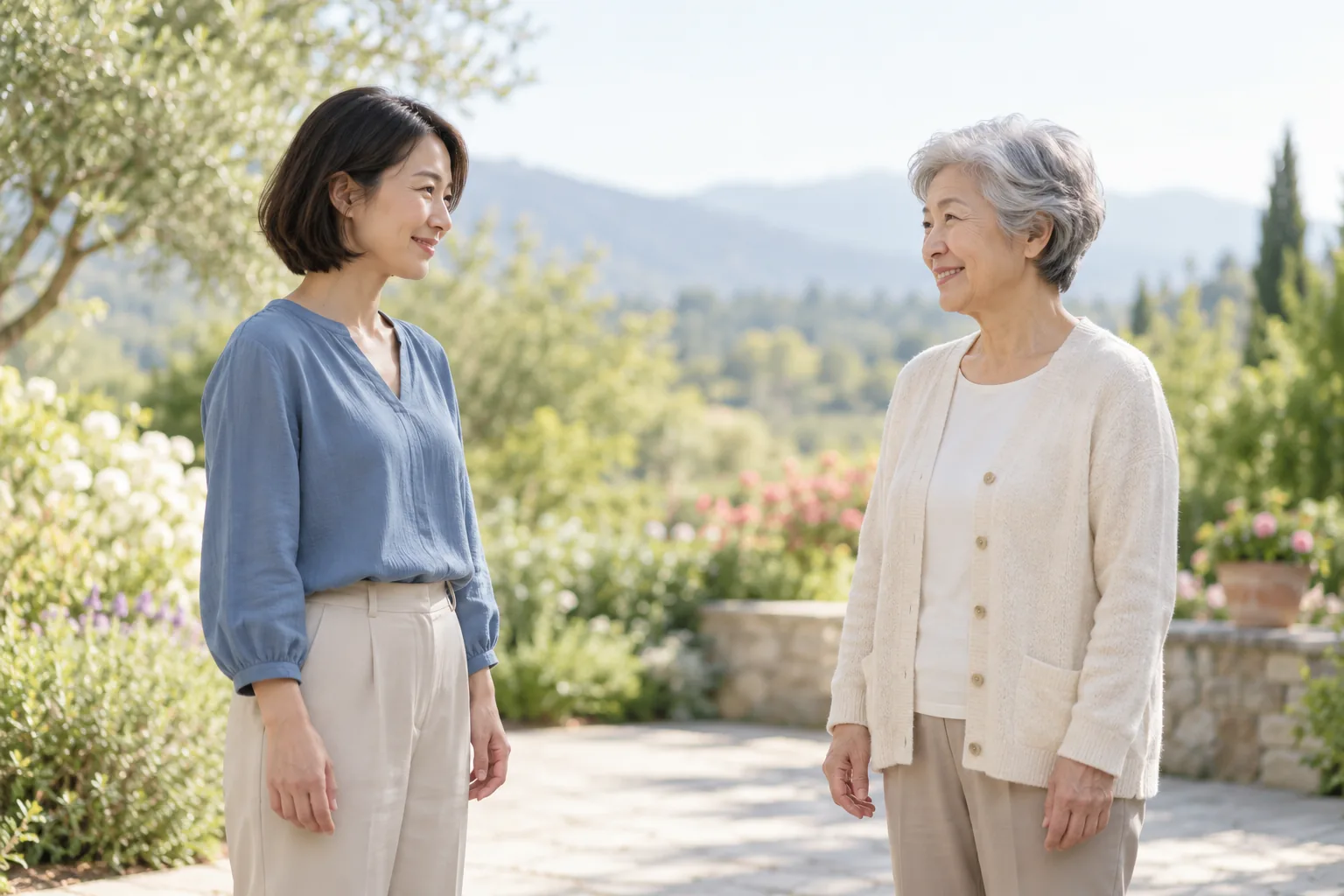
A complete frame gives the video model both people, their spacing, and a consistent environment at the same time.
3. Choose image-to-video and a restrained first attempt
Open the image-to-video workspace, select the model you want to use, and choose Image to Video or its Starting Image mode. Upload the approved frame. If the interface offers Start + End, add an ending image only when you have a coherent final frame of the same scene.
Choose the aspect ratio for the destination: landscape for a wider family presentation, vertical for a phone-first tribute, or square for a compact post, when the selected model offers those options. Make the starting image in the same ratio to avoid cutting off a face or an arm.
For a first attempt, choose a short available duration and a fixed camera. Settings, model availability, and credit costs can vary, so check the displayed cost and current pricing before generating. Plan for revisions rather than assuming the first output will be usable.
4. Describe movement, not a new cast or scene
The starting frame already establishes the people and setting. Use the video prompt to describe the movement you want to add. Ask for a slow approach over a short distance, a gentle embrace, and a quiet hold. Preserve clothing, face identity, and the background.
A fixed camera makes it easier to see whether the people remain consistent. Once you have a successful version, you can experiment with a slight push-in. Avoid a fast orbit around the subjects during a hug, when faces and hands are already being partially hidden.
5. Review the whole clip before adding music or captions
Watch at normal speed, then pause just before contact, during the embrace, and at the end. Check each face separately. Look for an extra hand, an arm crossing through a torso, a changing neckline, or one person merging into the other.
Keep only a version you would be comfortable showing without an explanation of its visual flaws. If you add music or text afterward, use an editor you trust and audio you have permission to use. Add a short disclosure such as “An AI-created tribute, imagined with love.” Do not present the clip as an authentic recording.
Hug in Heaven prompts you can adapt
These are starting templates, not promises of a specific result. Use a combined reference image and change one element at a time when comparing attempts.
Soft clouds and an imagined reunion
Use this when the family welcomes a symbolic heaven setting. Prepare the cloud background in the starting frame first; do not ask the video to transform a living room into clouds halfway through the hug.
Animate the two people already visible in the starting image. They lean gently toward each other and share a slow, natural hug, then hold the embrace. Preserve their faces, apparent ages, clothing, and relative height. Keep the camera fixed at eye level. Soft clouds drift subtly in the distant background, with warm diffused light and a quiet, tender mood. Natural arms and hands, no extra people, no face morphing, no sudden scene change, no text.A familiar garden instead of clouds
Choose ordinary surroundings when you want the tribute to feel connected to a shared memory. Keep the background movement smaller than the movement of the people.
Using the supplied garden image as the first frame, the two family members turn slightly toward one another and share a gentle embrace. Keep both people recognizable and their clothing unchanged. Show relaxed shoulders and a small, natural movement of the arms. The camera stays still. Leaves move lightly in the background. Warm afternoon light, realistic motion, no dramatic effects, no new objects, no speaking.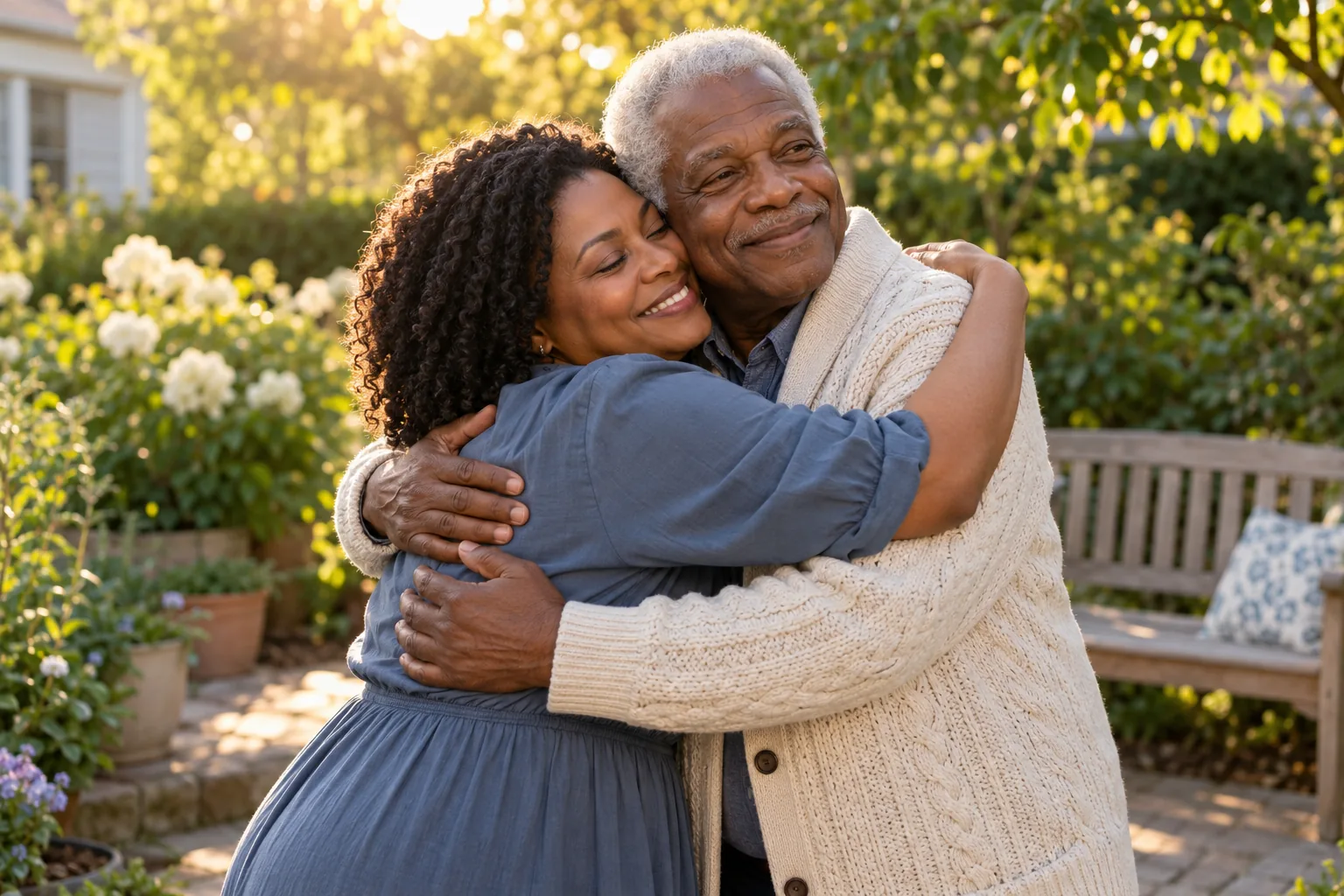
A familiar setting can carry the memory without adding stairs, wings, or a dramatic departure.
A quiet held hug for a difficult source image
If the starting photograph already shows an embrace, preserve it. Ask for breathing and a small shift of weight instead of making the subjects separate and hug again.
Preserve the embrace in the source image. Add only subtle breathing, a small relaxed shift of the shoulders, and gentle movement in the clothing. Maintain the exact number of people and keep their faces and hands stable. Fixed camera, consistent lighting, no separation, no walking, no head turn, no dialogue, and no background transition. The mood is peaceful and understated.For more help shaping a still image before animation, the GPT Image 2 prompt library offers additional composition and reference-image ideas. Use only the parts that support your own photographs; more descriptive words do not automatically produce a more faithful likeness.
Fix common AI hug video problems
An embrace is a demanding motion because arms overlap and faces become partially hidden. Change the input or motion before adding more decorative language to the prompt.
| Problem you see | What to try next |
|---|---|
| One face turns into the other | Start from a single frame with both people clearly separated; remove any portrait-to-portrait start/end setup |
| A person looks unfamiliar | Return to the still image, use a clearer reference, and reject altered facial features before animation |
| Hands multiply or arms bend unnaturally | Begin closer to the embrace, use a simpler arm position, and reduce the amount of motion |
| The people appear pasted together | Rebuild the starting image with matching perspective, scale, and light direction |
| The camera hides the faces | Use an eye-level fixed shot and remove orbit, spin, or fast zoom instructions |
| The scene changes halfway through | Put the final setting in the first frame and remove transformation instructions |
| A vertical crop cuts off a person | Recompose the source at the intended aspect ratio with both faces inside the safe central area |
| The result feels too theatrical | Remove glowing figures, sudden entrances, tears, or large movements; try an ordinary setting and a held hug |
If repeated attempts change the person you want to remember, a still tribute or a gentle animation of the original photograph may be the better format. The purpose is a meaningful keepsake, not the most complicated effect.
Make the tribute comfortable to share
A memorial video can be intensely personal. Preview it privately before posting, and ask close family members before sharing an imagined scene involving someone they are grieving. Different people may welcome different levels of realism, religious symbolism, or public visibility.
Avoid surprising someone with a realistic AI reunion. Offer a description first and let them choose whether to watch. A simple caption can keep the intention clear: “An imagined moment in memory of Dad,” or “An AI-created tribute to someone we miss.” Do not add invented speech or imply that the person actually said something.
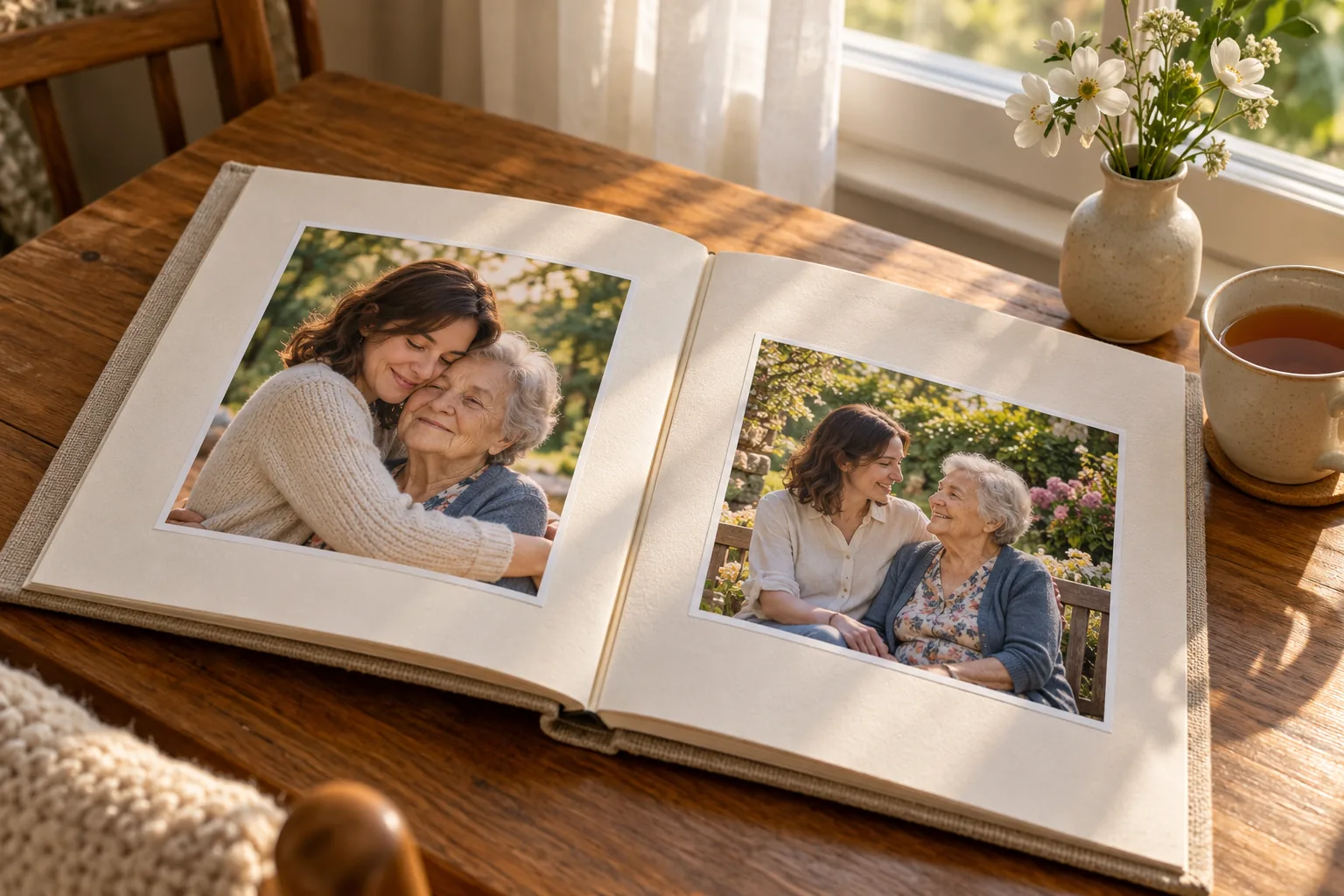
Keep the original photographs alongside the tribute so the real memories remain distinct from the generated scene.
Save the original photos, the final starting frame, the prompt, and your chosen clip together. That makes it easier to revise a crop or create another version without reconstructing the entire process. If you want visual inspiration, browse the AI image and video showcases for composition ideas while remembering that a polished example cannot guarantee the same result with a different face or photograph.
When you are ready, prepare your starting image, check it carefully, and animate one gentle moment. A recognizable face, believable movement, and a setting that means something to the family are the details that make a Hug in Heaven tribute feel considered.
Frequently asked questions
What is Hug in Heaven?
Hug in Heaven describes an AI-created memorial image or video that imagines a reunion with a loved one who has died. Many versions show an embrace in soft clouds or warm light; others use an ordinary garden or family home. It is an imagined tribute, not footage of a real reunion.
Can I make a Hug in Heaven video from two separate photos?
Yes, with a workflow that supports reference-based image creation or multiple identity references. For a starting-image video workflow, first combine both people into one coherent image. Starting Image and Ending Image inputs describe the beginning and end of a shot, not two separate people.
Do I need an existing photo of both people hugging?
No. A clear photo of the two people standing close together can be a starting point. If they appear only in separate photos, prepare a combined first frame and check the faces, scale, and hands before animation. Results depend on the source images and selected model.
Is Hug in Heaven a specific AI model or filter?
It is a name used for a memorial-video theme and for templates offered by different services. Features vary between tools. On AI Image to Video, this guide uses an image-preparation step followed by image-to-video generation rather than a dedicated Hug in Heaven preset.
Can I create a Hug in Heaven video for free?
Check the credits shown in your account and the current generation cost before starting. AI Image to Video offers account credit options, but the model, settings, and available balance determine whether a particular generation is covered. This guide does not promise unlimited free generation.
Why do faces or hands change in an AI hug video?
An embrace creates occlusion: faces turn, arms overlap, and hands move behind clothing. A model may invent details it cannot preserve from the source. Try a clearer combined image, a closer starting pose, a fixed camera, and a shorter, slower movement. Reject a result if the people no longer look recognizable.